



For most kids, opening an online game is just a way to build, play, and connect with friends.

But… beneath the surface of popular titles like Roblox and Minecraft, a sinister trend is unfolding. The tragic realities hit too close to home following the harrowing school violence at San Jose National High School in Tacloban and the recent tragedy at Ateneo de Zamboanga University. Authorities and cybercrime experts have linked these horrific incidents to “764”—an aggressive online syndicate operating within extremist subcultures to groom, manipulate, and coerce young students into real-world violence.

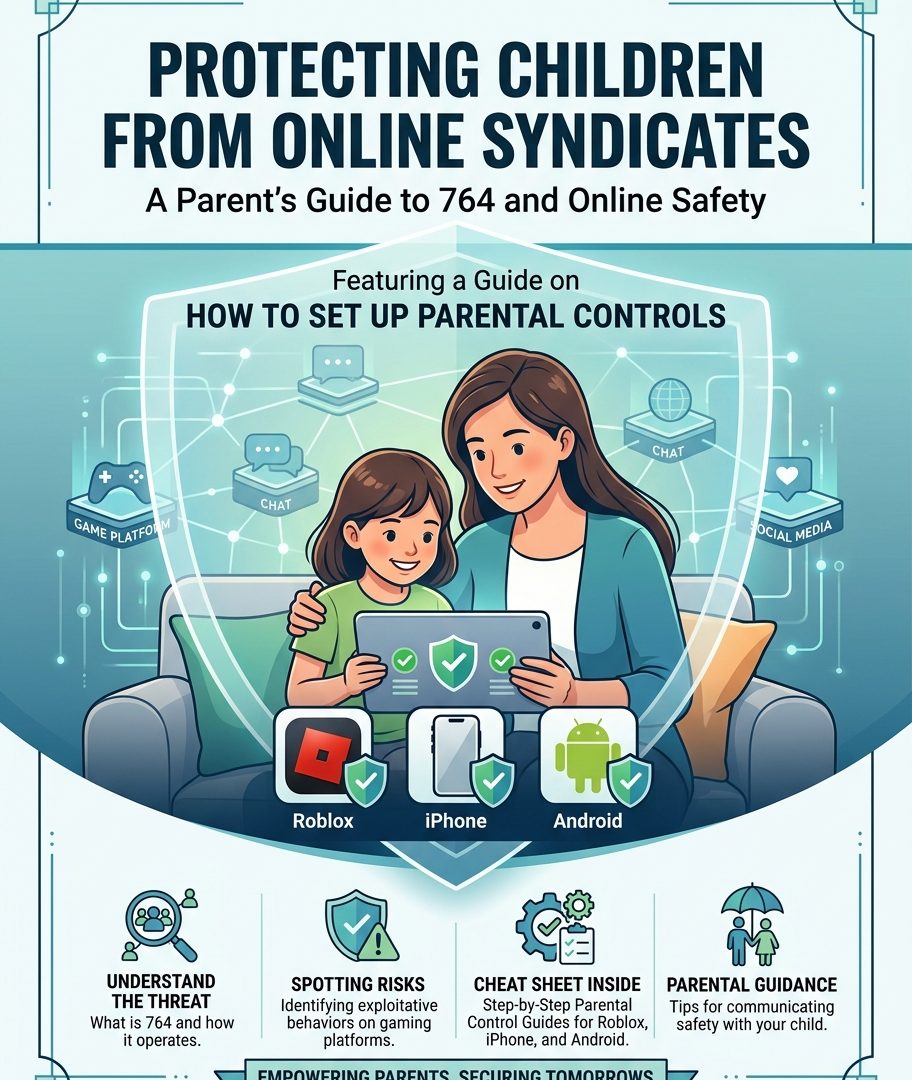
While digital spaces evolve rapidly, the ultimate safeguard remains the same: proactive parental involvement. Digital safety isn’t just a technical setting; it’s an ongoing conversation. This guide breaks down how these syndicates operate and equips you with actionable strategies—and parental control cheat sheets—to keep your household protected.
What are the Exploited Platforms
Category
Platform(s)
Primary Infiltration Method
Risk Level
Mobile Gaming (PH Focus)
Mobile Legends (MLBB), CODM, Free Fire
Offering free Diamonds/CP/Battle Passes, exploiting Squad/Clan chats, and using live voice chat during matches.
CRITICAL
Sandbox & Building
Roblox, Minecraft
Gifting Robux/ranks, inviting kids to private VIP/custom servers, and using coded text to bypass chat filters.
CRITICAL
PC & Tactical Shooters
Valorant, GTA Online, Fortnite
Luring players in open match voice chats, offering free skins, or inviting targets to private Discord squads.
HIGH
Off-Platform Migration
Discord, FB Messenger, Telegram, WhatsApp
The primary destination where grooming, extortion, and coercive “tasking” take place outside game moderation.
CRITICAL
How the Threat Works in General
Bad actors rarely keep their interactions inside the game. They typically use gaming chats to build initial trust—sometimes offering free in-game currency or gifts. Once trust is established, they convince students to move their conversations to unmonitored private messaging platforms (such as Discord, Telegram, Snapchat or WhatsApp). Off-platform, predators use manipulation, blackmail, or peer pressure to convince minors to participate in harmful online or real-world tasks.
Warning Signs for Parents:
- Extreme Secrecy: Quickly hiding or switching screens when an adult walks by, or refusing to share device passcodes.
- Off-Platform Messaging: Sudden or secretive use of encrypted messaging platforms like Telegram or private Discord servers.
- Unexplained Digital Gifts: A child receiving unexpected in-game currency or digital items from unknown online contacts.
- Mood & Sleep Shifts: Increased anxiety, irritability, sleep disruption, or sudden withdrawal from family and offline friends.

4 Essential Safety Measures to Implement at Home
- Use Common Spaces: Keep gaming consoles, PCs, and laptops in shared living spaces rather than closed bedrooms, especially late at night.
- The “Game-Only” Rule: Enforce a strict boundary that contacts met in online games must never be added to private phone messaging apps or social media without parent approval.
Note: Blocking a single game like Roblox will not eliminate the risk. The core threat is the behavioral pipeline—moving from any public game chat to an unmonitored, private messaging app.
3. Lock Down Privacy Settings: Set your child’s account birthdate accurately, restrict direct messaging from strangers, and lock safety settings with a Parent PIN. Do not allow your child to install private messaging apps like Telegram, Discord, WhatsApp and Snapchat.
4. Maintain Open Dialogue: Reassure your child that if they ever feel uncomfortable, threatened, or blackmailed online, they can come to you (or any school official) without fear of getting into trouble.
How to Lock Down Privacy Settings?
This step-by-step guide helps parents lock down privacy settings, restrict unvetted messaging, and monitor online activity across the most common gaming platforms and mobile devices.
Roblox Support
1. Roblox: Account Linking & Privacy Lockdowns
Why this matters: Predators use Roblox chat to persuade children to move to unmonitored apps like Discord, Telegram, or Snapchat. Restricting communication settings keeps interactions safely inside moderated spaces.
Step 1: Link Your Parent Account
- Open the Roblox app on your child’s device.
- Go to Settings (Gear icon) → Parental Controls.
- Select Add Parent and enter your parent email address.
- Open the confirmation email on your device and follow the prompts to complete age verification and link the account.
Step 2: Restrict Chat & Direct Messaging
- From your linked parent account, open Settings → Parental Controls → Communication.
- Game Chat: Set to Off or restricted to age-checked groups.
- Direct Chat (/w commands): Set to Off or Connections Only.
- Party / Server Settings: Restrict private server invites to verified connections only.
Step 3: Content & Spending Restrictions
- Under Content Restrictions, set the Content Maturity level appropriate for your child’s age.
- Set Spending Restrictions to $0 or require email notifications/approval for any Robux purchases.
Source: Roblox Safety & Civility Center and Roblox Support Guide on Parental
Controls.
2. Apple Devices (iPhone / iPad)
Step 1: Enable Screen Time & Set a Passcode
- Open Settings → Screen Time.
- Tap Use Screen Time Passcode (create a 4-digit PIN that only you know).
- If using Apple Family Sharing, manage this directly from your own iPhone under Settings → Family → [Child’s Name].
Step 2: Prevent App Downloads & Unapproved Contact
- Go to Screen Time → Content & Privacy Restrictions (Turn switch ON).
- Tap iTunes & App Store Purchases:
- Set Installing Apps to Don’t Allow (or require password).
- Set In-App Purchases to Don’t Allow.
- Tap Communication Limits: Set allowed contacts during Screen Time to Contacts Only.
Step 3: Enable Web & Adult Content Filters
- Go to Content & Privacy Restrictions → Content Restrictions → Web Content.
- Select Limit Adult Websites or Allowed Websites Only.
Source: Apple Support: Use Parental Controls on your Child’s iPhone and iPad and Apple Support: Use Screen Time
3. Android Devices (Google Family Link)
Step 1: Set Up Family Link
- Download the Google Family Link app on the parent’s phone.
- Add your child’s Google account to your family group. (Get your child’s device)
- Open Settings
- Go to Google, then Parental Controls
- Follow the steps to setup Parental Controls
- Tap Done when you’re finished
Step 2: Restrict App Downloads & Purchases
- Open Family Link → Select your child’s profile → Controls.
- Tap Content Restrictions → Google Play.
- Under Require approval for, select All Content or In-app purchases.
Step 3: Block Sideloading & Web Threats
- In Family Link, go to Controls → Account Settings → System Settings.
- Turn OFF Apps from unknown sources (prevents downloading unvetted third-party APK files).
- Go to Filters on Google Chrome and select Try to block explicit sites.
Source: Google Family Link Help Center
Protecting our children online is not a burden meant to be carried by any parent alone. Digital safety is a collective community responsibility—requiring active involvement from families, schools, game platforms, and local authorities alike.
Threats like 764 thrive in secrecy and ignorance, but they lose their power when we stand united and vigilant. Staying informed is our strongest defense; by sharing knowledge, maintaining open conversations with our kids, and looking out for one another, we create a safer digital environment where our children can play, learn, and grow without fear.